


PHP, a widely used scripting language in web development, plays a crucial role in powering dynamic websites.
As technology advances, developers often find the need to update or change their PHP versions to ensure optimal performance and security. For example, WordPress.org recently announced that WordPress 6.4’s will only be compatible with PHP versions 8.1 or 8.2.
In this guide, we’ll explore the process of changing PHP versions within StackCP, a powerful control panel we use in all our Web Hosting packages and Email Hosting packages.
Why Change PHP Version
The version of PHP your website uses can significantly impact its performance and functionality. Upgrading or downgrading PHP versions becomes necessary when certain applications or scripts require specific PHP environments for compatibility.
Failure to address this can lead to issues like slow loading times, errors, or even a non-functional website.
Checking Current PHP Version
The first step is to identify your current PHP version in StackCP.
To find the version currently in use, head to cp.paluhost.co.ke > Client Area > Manage Hosting > [Select Package] > Web Tools > “Switch PHP Version”
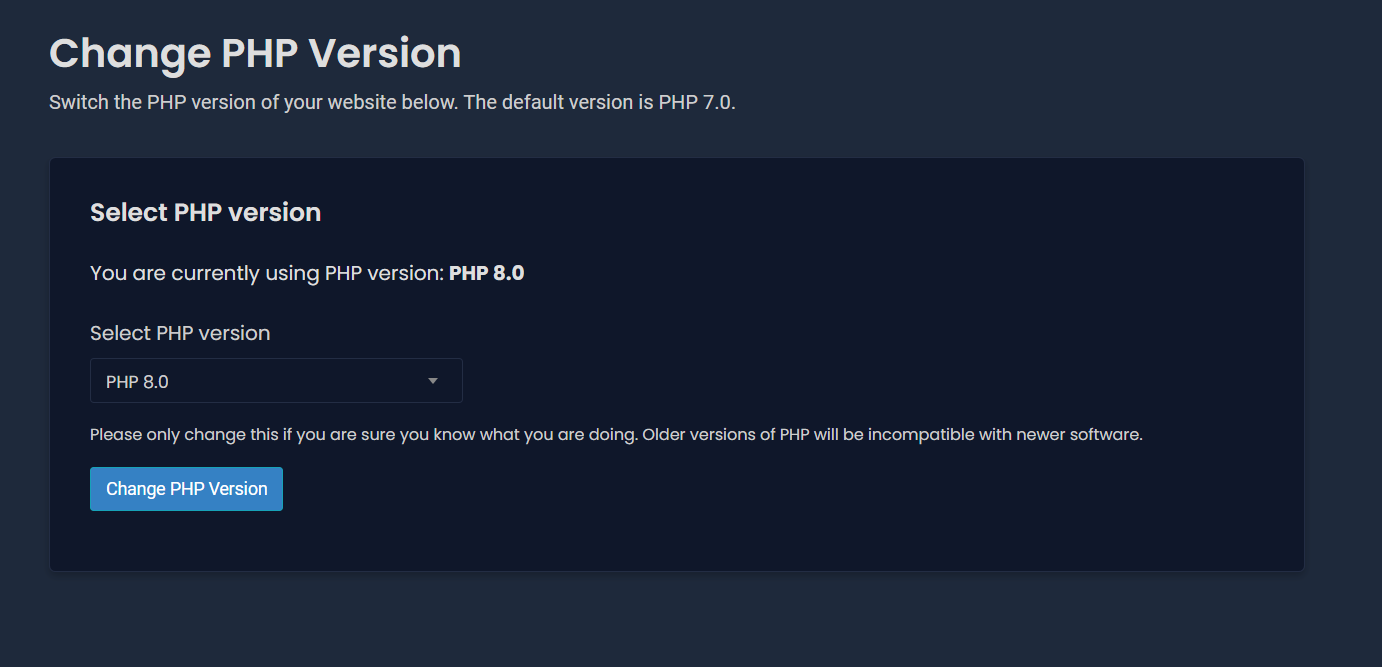
Our Linux platform has the ability to run different versions of PHP:
- PHP 5.3
- PHP 5.4
- PHP 5.5
- PHP 5.6
- PHP 7.0
- PHP 7.1
- PHP 7.2
- PHP 7.3
- PHP 7.4
- PHP 8.0
- PHP 8.1
- PHP 8.2
Changing PHP versions isn’t a one-size-fits-all solution. It’s essential to consider the compatibility of your website’s applications with the target PHP version. Some scripts may not work seamlessly with the latest PHP release, necessitating careful consideration before making the switch.
Step-by-Step Guide to Change PHP Version
Now, let’s get down to the nitty-gritty of actually changing the PHP version in StackCP. Follow these step-by-step instructions, and you’ll navigate through the process effortlessly.
- Log in to your cp.paluhost.co.ke account.
- Go to Client Area > Manage Hosting > [Select Package] > Web Tools > “Switch PHP Version”
- Select the desired PHP version from the available options (PHP 5.3, PHP 5.4, PHP 5.5, PHP 5.6, PHP 7.0, PHP 7.1, PHP 7.2, PHP 7.3, PHP 7.4, PHP 8.0, PHP 8.1, PHP 8.2)
- Click on Change PHP Version to save your changes.
Wait for about 5 minutes for the change to be effective.
Best Practices for PHP Version Management
To ensure a hassle-free experience, consider these best practices when changing PHP versions:
- Regularly check for application updates to ensure compatibility.
- Keep a backup of your website before making significant changes.
- Monitor your website’s performance post-version change for any anomalies.
Pro Tip: Why you should update to PHP 8 for your WordPress website
Conclusion
As technology evolves, so does PHP. Stay informed about upcoming trends and changes in PHP development. Being proactive in adapting to new versions ensures your website remains secure, performs optimally, and stays ahead of the curve.
Changing PHP versions in StackCP is a manageable task with significant benefits. Whether you’re enhancing security, addressing compatibility issues, or preparing for the future of PHP development, navigating through StackCP’s interface empowers you to take control of your website’s performance.

0 Comments